
Admin Basics
The General Settings section in the Mellowe Admin Dashboard allows workspace administrators to configure core app behaviors, select announcement channels, customize recognition currency and daily limits, and manage account lifecycle options.
1. Main Channel Selection
Section titled “1. Main Channel Selection”Choose the primary Slack channel where Mellowe publicly posts recognitions, badges, and automated celebration announcements.
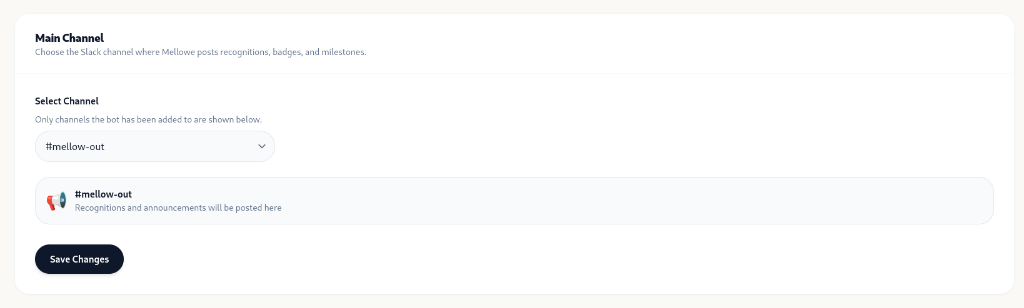
Setting Up Your Main Channel:
Section titled “Setting Up Your Main Channel:”- In the Admin Dashboard, go to Settings > General.
- Under Select Channel, open the dropdown menu.
- Choose your designated channel (e.g.
#mellow-outor#recognition).Note: Only Slack channels where the Mellowe bot has already been invited/added will appear in the dropdown list. If your channel is missing, invite Mellowe to the channel in Slack first (
/invite @Mellowe). - Click Save Changes.
2. Custom Currency & Daily Limits
Section titled “2. Custom Currency & Daily Limits”Customize the primary emoji currency used for appreciation and set daily giving allowances for your team.
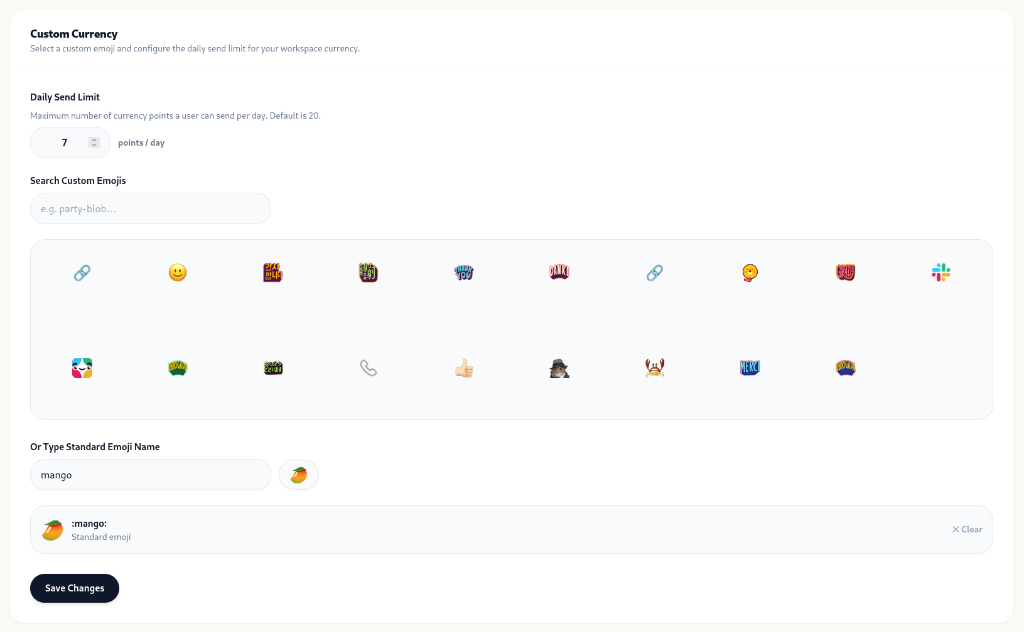
Configuring Currency & Limits:
Section titled “Configuring Currency & Limits:”- Daily Send Limit:
- Set the maximum number of currency points a user can give per day (Default is 20 points/day).
- Example: Set to
7points/day to keep recognitions deliberate and meaningful.
- Search Custom Emojis:
- Browse or search your Slack workspace’s uploaded custom emojis (e.g.
:party-blob:,:shipit:).
- Browse or search your Slack workspace’s uploaded custom emojis (e.g.
- Type Standard Emoji Name:
- Type any standard emoji identifier (e.g.
mangofor:mango:🥭).
- Type any standard emoji identifier (e.g.
- Click Save Changes.
3. Danger Zone
Section titled “3. Danger Zone”The Danger Zone contains critical workspace management options.

Delete Account:
Section titled “Delete Account:”- Clicking Delete Account will permanently remove all workspace data, member profiles, points balances, badge history, and recognition logs.
- ⚠️ Caution: This action is immediate and cannot be undone.